


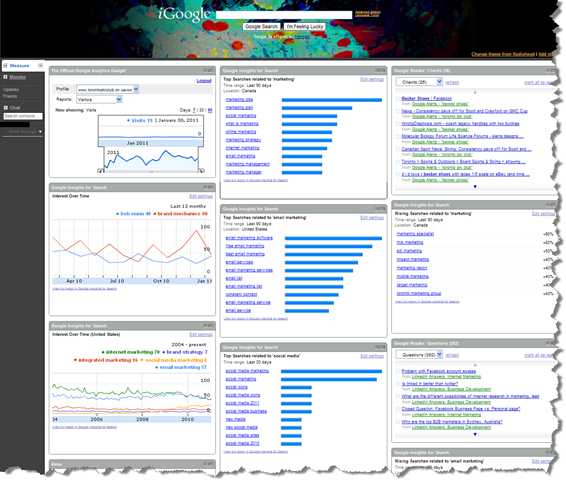
Sophisticated Social Media Monitoring tools like Radian6 are terrific but if youre working on your own stuff or a small business you cant always justify the cost. Heres how to set up your listening post / dashboard using free tools so that youre tapped into what people are saying about you, your competition and your category. Heres an example of a finished product.
Step 1. Do Your Keyword Homework Theres no getting around it. You need to start by identifying 3-5 important keywords or keyword phrases using Googles AdWords Keyword Tool (https://adwords.google.com/select/KeywordToolExternal).
Step 2. Create a Dedicated Google Account Something like [email protected]
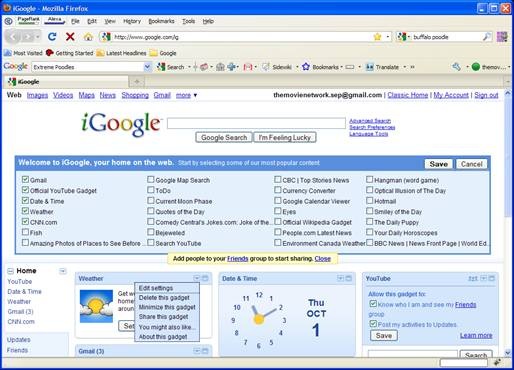
Step 3: Set Up an iGoogle Page Visit the iGoogle page (https://www.google.com/ig). Delete the existing gadgets that are pre-populated by clicking on the little triangle in the top right corner of each gadget. Once youve cleared everything click on the Add stuff link on the right side of the page. Search for Google Reader making sure its the official one from Google. Click the Add it now button and it will be added instantly to your iGoogle page. Youll want to do this 4 or 5 times so you end up with multiple Google Reader windows. Just leave them there for now.
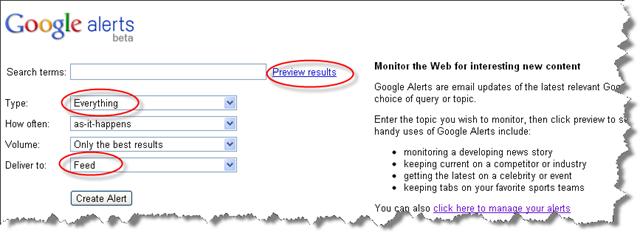
Step 4: Be Alert! Visit Google Alerts https://www.google.com/alerts and, using your keyword phrases, start to identify results that youll want to monitor. You can select Everything or just News or just Blogs. Preview results till you find a feed youll want to monitor. Then make sure you select deliver to Feed vs. eMail. Once youve got one good result, start over with your next keyword phrase. When all your keywords phrases are done, enter the name of the business you want to monitor mentions of and that of your key competitors. Remember, you can use Googles advanced search operators to refine the results to refine the results e.g. collingwood "afl "england and eliminate noise.
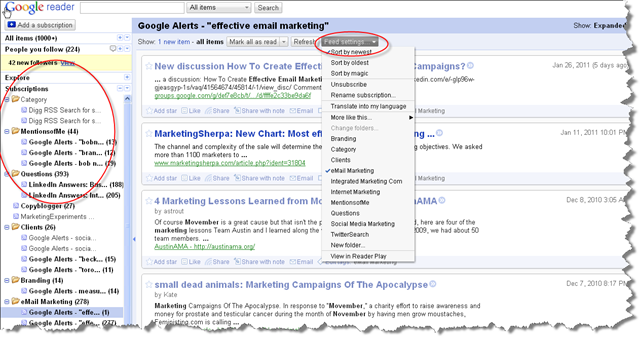
Step 5: Organize Your Reader View the results in Google Reader via your new Alerts page. Youll want to organize your Reader by creating folders. Id recommend creating a folder for each main topic eg. client, competition, product etc. Then place each search into the appropriate folder. On the left side of the Google Reader page youll see a list of your subscriptions that you created. Click on them one at a time and when it populates the main window click on the Feed Settings tab selecting the appropriate folder.
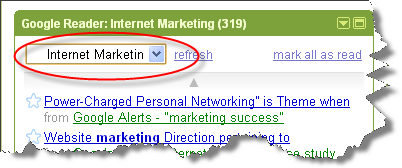
Step 6: Organize Your iGoogle Page Now youre getting somewhere. Go back to your iGoogle page. In one of the Google Reader windows that you created earlier select one of your folders in the drop down menu in the upper left hand corner. Do this for each of the Google Reader windows youve created selecting a different folder for each. Add more Google Reader windows if you need to by repeating Step 3. Its like building your own personalized morning paper so that you listen & learn only to what you need to.
 .
.
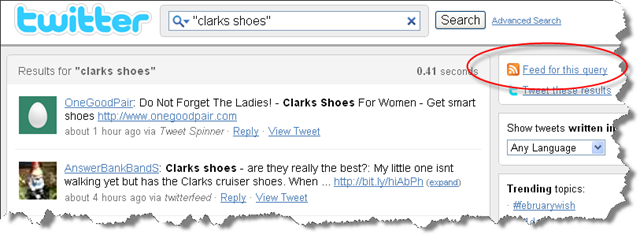
Step 7: Add A Twitter Feed Visit Twitters Advanced Search tool (https://search.twitter.com/) and search for your keyword phrases, your clients name and their competitors names with quotes. The advanced search can help you narrow down your results. Once youre satisfied with what youre getting, click on the RSS feed for these results. Oddly, I find it easier if Im in Firefox or a browser other than Google Chrome when Im doing this.
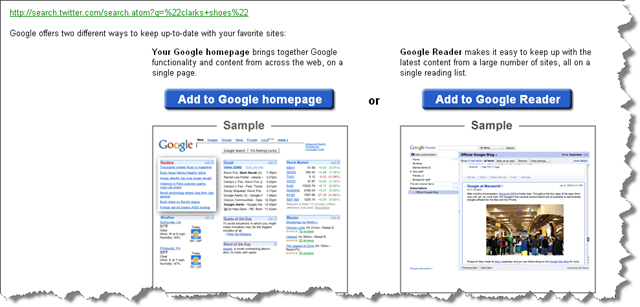
Youll get two options. Add it to your new iGoogle Home Page and now youve got a steady stream of tweets to review each morning. Or, conversely, you could add multiple Twitter results into a folder on Google Reader and feed the consolidated stream onto your iGoogle page.
Step 8: Feed Your Reader Now that youve got the hang of it you can add any number of RSS alerts to your iGoogle homepage. Just look for that orange RSS symbol in handy places such as search results from Technorati, traffic trending of top sites via Alexa or, simply, key or friendly blogs in the category.
Step 9: Pimp Your Read Theres all sorts of other tools that you can add to your iGoogle Page so that you can monitor important trends and results. For example, you can take your top 5 keyword phrases and pump them into Googles Insights for Search adjusting the geographic scope of your search. Any number of the results including the Trending chart, Top Searches or Rising Searches can be added to your iGoogle page by clicking on the little button in the lower left hand corner of each of these results. Now you can watch when a key term starts to decline seasonally and adjust your social media messaging or hitchhike on whats hot by watching Rising Searches.

Or, alternatively, you can click on the Add Stuff button on your iGoogle homepage and populate your page with new tools such as the brand new feed of your Google Analytic results. Now your morning paper is also starting to become a bit more of a dashboard.
Step 10: Rinse & Repeat Continue to play with iGoogle page, shifting windows around, deleting some feeds, refining others until you have a page that really helps you keep your ear to the ground and your hands upon the wheel.
Hope this helps.
Any questions, shout.
About the Author: Bob Nunn